HMD
Multiple different head-mounted displays (HMD) is supported, with different backends. The following HMDs are tested and known to work well:
-
Valve Index
-
HP Reverb G1/G2
-
HTC Vive Pro 1/2
Other HMDs will most likely also work, but have not been tested.
Settings
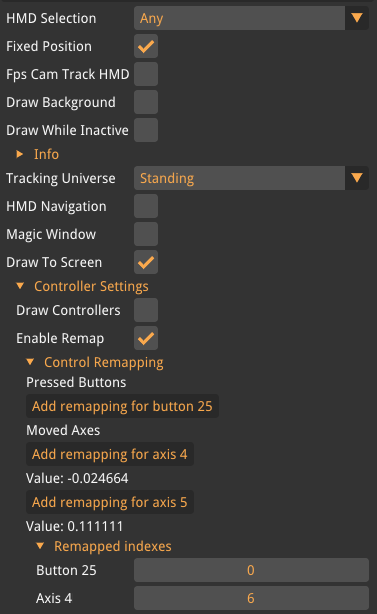
- HMD Selection
-
HMD selection is a dropdown menu that specifies which backend should control the HMD. The following are available:
-
Any
-
Oculus
-
OpenVR
-
OpenXR
-
None
-
When selecting "None", the HMD functionality will be disabled. When choosing "Any" the first backend that works with the current headset will be used.
- Fixed Position
-
If enabled, it will lock the HMD position to the origin (i.e. disable XYZ movement in the HMD world).
- Fps Cam Track HMD
-
If enabled, will make so the view on screen will match what the user sees in the HMD headset.
- Draw Background
-
If enabled, the background will be shown in the HMD headset, otherwise it will show the default background color of the HMD.
- Draw While Inactive
-
This setting enables rendering to the HMD screen even if the headset is not currently used by a user.
OpenVR Settings
- Info
-
This tab will show some information about the HMD such as model, resolution, and framerate.
- Tracking Universe
-
How the HMD is currently used (is the user seated or standing)
- HMD Navigation
-
When HMD Navigation is enabled, the user can move the whole VR world by pressing both trigger buttons on the VR controllers.
- Magic Window
-
Advanced function that can allow setting the screen projection to appear as a window through which one can look out. It is strongly recommended not to use this feature without consulting with support first.
- Draw To Screen
-
Disable the rendering to the screen and only render to the HMD. This will reduce the load on the computer in situations where only the HMD is needed.
OpenXR Settings
- FoV Factor
-
Multiplier on the FoV in the HMD. It is strongly recommended not to use this as it causes user nausea and fatigue.
- Show Calibration Cross
-
Show a cross for each eye which can be used to see how well the HMD is placed relative the wearer’s eyes.
Oculus Settings
- FoV Factor
-
Multiplier on the FoV in the HMD. It is strongly recommended not to use this as it causes user nausea and fatigue.
- Oculus Stats
-
Shows information about the Oculus HMD.
Controller Inputs
Settings for HMD controllers
- Draw Controllers
-
If enabled, will show the controllers in the VR headset.
- Controller Remapping
-
Controller remapping allows the user to remap button. Hold down any button or move any axis on the controller and click the button that pos up to add a remapping for that specific button. This can be used when using the same plugin with different HMD where buttons may have different ID’s. Each Button and Axes ID can be mapped to any other value that is desired. For example, the default for button 1 is index 1 which contain the value for that button. If the index is changed to 2 the value for button 1 can now be obtained through index 2 instead.